Smart Trainers Explained: Types, ERG Mode and What to Look For
What makes a trainer "smart", how wheel-on, direct-drive and smart bikes differ, what ERG mode does and which specs actually matter when you choose one.
Read More »There are two ways to get a structured workout onto a Wahoo head unit: sync it from a training app, or copy the file over USB. Here is how both work on Mac and PC.
October 28, 2026 · 3 min read
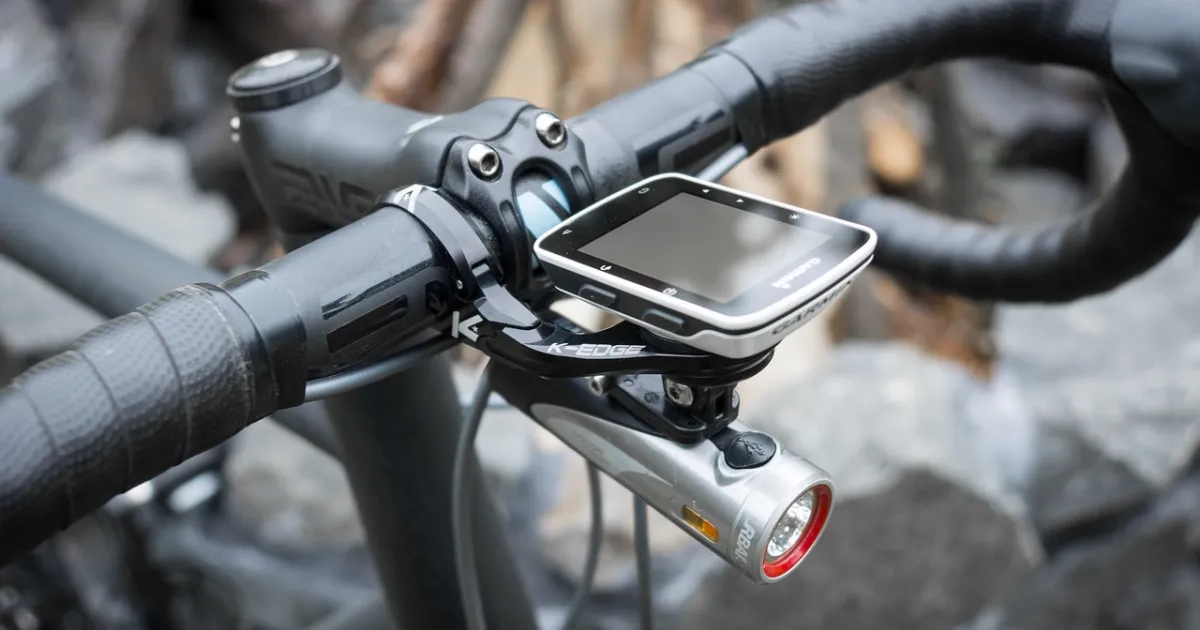
A Wahoo ELEMNT, BOLT, ROAM or ACE can guide you through a structured workout, showing each interval and target, and can control a smart trainer in ERG mode. Getting the workout onto the unit is the only tricky part. There are two routes.
This is the route Wahoo supports officially, and it works the same on every computer.
You can also copy a workout file straight onto the unit. Wahoo head units connect to computers using MTP, the same USB standard Android phones use, and the unit must be switched on, not just charging.
| Head unit | Workout file over USB |
|---|---|
| ACE, BOLT 3, ROAM 3 | Planned workouts in .FIT format. USB access is off by default: turn it on in the Wahoo app's device settings first. |
| ELEMNT, BOLT 1/2, ROAM 1/2 | Riders commonly copy .mrc files into the plans folder. Wahoo does not officially support this method, but it is widely used. |
Connect the unit with a USB data cable. It appears in File Explorer like a phone. Open its storage, find the plans folder and copy the file in.
macOS does not open MTP devices on its own, so you need a small MTP file transfer app; Google's Android File Transfer has long been the usual choice, and free alternatives exist. Connect the unit, open the app, find the plans folder and drag the file in. If the unit does not appear, unplug it, close the app and connect again with the unit switched on.
Unplug the head unit and sync planned workouts from its menu. The workout then shows up under planned workouts. Files loaded this way live only on the unit: you cannot manage or back them up in the Wahoo app.
For older units, download the MRC file of any workout in our library.
Yes. Besides syncing from a linked provider, workout files can be copied to the unit over USB. Newer units take planned workouts in .FIT format; older units are commonly loaded with .mrc files in the plans folder.
Wahoo units use MTP, which macOS does not support on its own. Install an MTP file transfer app, connect the switched-on unit with a data cable and open its storage in that app.
After syncing planned workouts on the unit, they appear under Planned Workouts.
What makes a trainer "smart", how wheel-on, direct-drive and smart bikes differ, what ERG mode does and which specs actually matter when you choose one.
Read More »TrainingPeaks can import structured workouts as .zwo files. Here is how to add them to your Workout Library, put them on your calendar and get them onto your trainer.
Read More »Garmin Connect does not import workout files, but there are three reliable ways to get a structured ride onto your Edge or watch.
Read More »